
Archive for the 'Software' Category
Mini-Review: Timeline
December 18, 2007Bee Docs recently released the second version of Timeline, their chart creation program for Mac OS X. When I first saw the announcement, I thought “that is going to be a great tool for litigators.” Almost any type of litigation has some kind of timeline worth showing. And from the samples on the Bee Docs website, it looks like Timeline can create some beautiful timelines.
But, as Lee Corso would say, “not so fast, my friend.” I tried out Timeline today and it seems like it is almost there. To start with, Timeline is very easy to use. After choosing a theme, you can begin adding events to your timeline right away. Timeline does sport some iLife integration (Address Book, iCal, iPhoto, and iTunes), but these options all seem more like fun things to play around with at home, rather than useful business tools. As you add entries to your timeline, the scale automatically shrinks or expands to accommodate your entries (more on that later).
Timeline has many appearance options. The default color settings can be modified. Pictures can also be added, either as a background image or as labels for your timeline entries. And, as you would expect, the font used for your timeline can also be changed.
Timeline is still a little rough around the edges, though. Often while creating the timeline, I wished that I could manually change things that Timeline does for me. I want to change the span of the timeline, but I can’t. That feature would be particularly helpful when two timelines are being created on the same page (see the screenshots for an example). Ideally, I would like the second row to pick up at the spot where the first row ended. Timeline, though, seems to require both rows to have the same timespan.
There are other little annoyances. New events are added in a small popup window. The window can’t be moved, though, and any attempt to do so simply adds an event with whatever data you had entered when you tried to move it. I would also like to be able to manually place the event titles vertically. I like the fact that Timeline can handle all the layout so I don’t have to. But, I would also like the option of moving things around a bit to create the exact visual impact I am looking for.
I am really hoping for a Timeline version 2.1. I think with just a few more tweaks and features, Timeline could be a program really worth using.

|
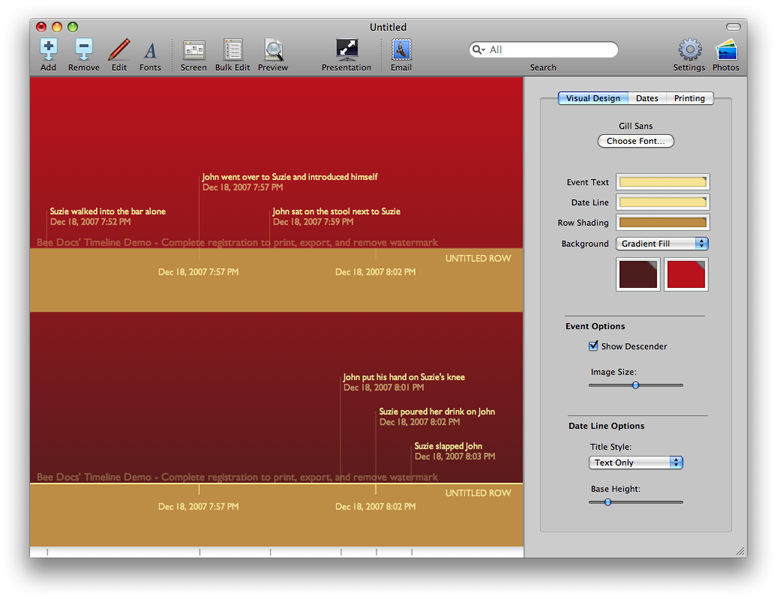
|
Mac Software Highlight: Leap
December 10, 2007I’ll admit it – I am a sucker for Finder replacements. I have Pathfinder, which I mostly use, and Forklift. Forklift is also an FTP program, but I primarily use it as a file manager (albeit occasionally) because I have Transmit for FTP. Yep Software (makers of Yep, which I have discussed before) are coming out with a new program called Leap (it is currently in a public beta release). Yep Software is billing Leap as a Finder replacement. For that to happen, though, you will have to totally rethink the way you use and look for files.
The main window of Leap has three parts: a sidebar, a filter panel, and a file list. Leap shares many similarities with the Leopard Finder. Finding a file starts by choosing a source from the sidebar. The sources are grouped into categories (Library, File Types, Places, and Search). Once a source is chosen, the file list will display all of the files that match the criteria for that source. If there are too many results, the list can be narrowed by choosing one or more options from the filter panel and/or using the search field. The file list defaults to an icon view with a live preview, allowing you to quickly find the file you are looking for.
The most powerful feature of Leap is the ability to add custom tags to your documents. Tags are labels that describe the contents of the file or how you would use the file. Leap allows you to easily add tags to files, and then filter your results by the tags associated with those files. None of this is anything that you can’t accomplish through the Finder in Leopard. However, working with tags in the Finder is clumsy and slow. Leap, on the other hand, is designed around custom tags. Leap has many ways to add and edit tags, including drag-and-drop and the info panel.
Many of Leap’s features don’t translate perfectly to the world of law. Some practice areas, though, will value Leap more than others. For example, lawyers in practice areas with thousands of client files – like estate planning – will often organize their files in a specific folder hierarchy. In this situation, Leap doesn’t add much. On the other hand, litigators can generate thousands of research documents and pleadings that will likely be scattered throughout the file system. Leap can be very helpful in that environment.
Leap’s custom tagging and search capabilities could be a real benefit in enabling the reuse of previous work. A litigator may want to use one set of tags to describe the kind of document (e.g. letter, pleading, research file) and another set of tags for practice areas (e.g. civil procedure, trademark, copyright). By using tags of varying detail, you can create a highly-structured repository of information without worrying about what directory a particular file sits in.
Starting to use Leap seems pretty daunting. Some of the features, particularly custom tags, won’t be very helpful in the beginning because none of my files will be tagged when I start using Leap. So leap requires a commitment, and a little bit of faith that using it will become better over time. I am still undecided, but I will certainly give it another look once the final version is released.
Mini-Review: Bento
December 2, 2007I wrote in a previous post that I planned to put Bento through its paces. Today, I finally got that chance. I walked away impressed with Bento, but still wanting something more.
Our initial plan was to use Marketcircle Daylite for my wife’s law practice. We have started to implement Daylite, but aren’t so far along that we won’t switch to something else. When Bento came out, it looked like it would do everything that Daylite can do plus a few things we need that Daylite can’t do. Bento seemed like a good candidate to replace Daylite because we don’t anticipate needing the multi-user features of Daylite. The main drawback with Daylite is its apparent inability to link files to contacts and projects. Bento can do this easily with its file list data type.
Bento has its drawbacks too. To my eye, Bento’s critical failing is its lack of a record summary feature. Bento is great at creating, editing, searching, and sorting records. That’s useful, but it’s not enough. The most powerful way to use your data is to analyze and summarize the data. But, Bento’s focus is records and the ability to combine information from those records is quite limited.
For example, Bento lets me create projects and associate tasks with them. Viewing the projects list in Bento will show me all my projects, even the ones that are no longer active. Using a smart collection, I can view only the active projects. My view of the data is limited, though, to a traditional record view. I can’t, for instance, see a list of all the active projects and detail about the currently-pending task for each project. Bento also won’t show me a list of all the people I am supposed to call today, along with the reason for the call and the person’s contact information.
It’s apparent that what I need for my wife’s law practice is something more sophisticated than Bento. That “something” will probably be Filemaker Pro. The disadvantage with Filemaker Pro is that it doesn’t naturally integrate with Address Book and iCal. Like most things, that can be solved with money – by buying a set of pre-built commercial templates.
We will probably spend that money. Managing the client relationship is too important to risk messing it up by being cheap. Bento still looks like a very interesting product. It just looks too lightweight to handle the daily grind of a busy law practice.
OmniGraffle 5.0 Beta 1 Announced
December 1, 2007 The guys at The Omni Group announced the availability of the first OmniGraffle 5.0 beta. I am sure there are lots of new features, but one in particular caught my eye. OmniGraffle 5.0 will open Microsoft Visio files (files with a .vsd extension).
I have long been a supporter of Visio. I was using Visio for quite a while before Microsoft bought Visio Corp. More than a few people have lamented the absence of Visio from the Mac. OmniGraffle is a well-regarded Mac program that has similar features.
I don’t have much of a need for Visio or OmniGraffle for my own work. I have a copy of an earlier version – Apple Powerbooks and PowerMacs used to come with a version of OmniGraffle pre-installed – but I never really use it. Occasionally, though, people will send me a Visio (vsd) file. Until now, I haven’t found a good solution for opening Visio files on the Mac. Hopefully, OmniGraffle 5.0 will change that. I don’t have any Visio files to test with right now. But, the next time someone sends me a Visio file, I’ll surf on over to The Omni Group website and give it a whirl.
One final note, OmniGraffle 5.0 requires Leopard to run. So, if you’re still running Tiger, you’re out of luck.
OmniFocus: GTD for Mac
November 20, 2007 I did something I hadn’t planned on doing for a while – write an article about another application from The Omni Group.1 I have good reason, though. Over the weekend, The Omni Group announced a public beta2 of a task-management application called OmniFocus.
I have been using OmniFocus for several months now as part of the private beta program and have been quite impressed. My calendar needs are pretty simple, and iCal serves those needs well. The iCal To Do feature, though, hasn’t worked for keeping track of my tasks. The only way to categorize a task in iCal is to assign it to a calendar. That becomes quite cumbersome as the number of calendars grows because the primary way to distinguish one calendar from another is by color.
OmniFocus was inspired by David Allen’s Getting Things Done. OmniFocus isn’t the first Mac GTD application. But for me, at least, OmniFocus is the best of the bunch. I have listed the other Mac GTD applications that I know of at the end of article. If you know of any that aren’t listed, let me know and I will add them.
OmniFocus has the tools to make GTD work. OmniFocus lets me capture whatever I am thinking about as a task. I can annotate the task by writing notes or attaching file, so I can get rid of the email or piece of paper that got me thinking about the task. If I know right away that the task will be a big task, I can create the task as a separate project. If I discover later that a task is more complicated than I first thought, I can promote it from a task to a project at that time. In this way, OmniFocus lets me break down my tasks into discrete steps, so I always know what I have to do next.
Probably the best way to understand OmniFocus and how it can help you get organized is to see it in use. The Omni Group has a 15-minute video on their website about how to use OmniFocus and what it can do.
OmniFocus won’t replace your calendar application. But, if your task-management system involves pieces of physical paper or more than one application, you might want to take a look at OmniFocus.
1 I promise this will be the last one for a while. The Omni Group has several other applications, but I only use OmniWeb and OmniFocus regularly.
2 Beta software is pre-release software that the company allows people to use so the software can be tested as much as possible. It also happens to be great marketing by allowing people to use the software free for many months.