
Archive for the 'Software' Category
10 Most Beautiful Mac Applications (for Non-Geeks)
January 21, 2008One of the things that has drawn me to Macintosh computers is that there are so many beautiful applications. Many Mac applications look good simply because the basic window elements in OS X are attractive. There are a few Mac applications, though, that raise the bar. After being particularly impressed with a recent new application, I decided to list my top 10 most beautiful Mac applications.
I didn’t want to include just any beautiful application, though – I also wanted the list to be useful to my readers. In addition to being a lawyer, I am also a web developer and graphic designer. Many of the applications I use regularly wouldn’t be interesting to most lawyers or business owners. Therefore, I decided to limit the list to personal and business applications – no web-geek or design-geek stuff allowed! Here then, in (mostly) no particular order, is my list of the 10 most beautiful (non-geek) applications for Mac OS X:
1. iTunesAlmost everyone in the civilized world probably recognizes iTunes as Apple’s music, TV, and movie catalog and player. Since the very first release, iTunes has been ahead of the interface curve. Design elements introduced in iTunes have slowly made their way to the rest of OS X. It’s easy to see why. iTunes is functional and very pleasing to the eye. |
 |
 |
2. Delicious LibraryDelicious Library isn’t just beautiful, it’s also very innovative (I am not the only one who thinks so – they have an impressive list of awards at the bottom of their home page). Delicious Library is a book, movie, and video game catalog application. Titles in your library can be displayed in a list or in bookshelf mode. List mode is quite functional, but it is bookshelf mode where Delicious Library really shines. The book, movie, and game covers – downloaded automatically from the internet ‐ and wood bookshelf are very attractive. I just wish there was a choice of wood for the bookshelf. |
3. ThingsThings was actually one of the applications that prompted me to create this list (even the disk image looked pretty nice). Cultured Code’s other application – Xyle Scope – is also quite comely, but it doesn’t make this list because it is a tool for website designers. Things is the latest entry into a very crowded space, the GTD / notebook software. It’s an attractive entry too – and, although not reflected in the screenshot here, looks better and better as you enter more data. |
 |
 |
4. iStat ProiStat started small, as a series of Dashboard widgets. Those widgets grew into iStat Pro, a single combo widget, and iStat 2.0, a desktop version. iStat Pro gives me one place to look to see the current status of my computer – RAM and processor usage, free disk space, uptime, and much more. It’s also quite attractive – iStat Pro is minimalist, yet stylish. |
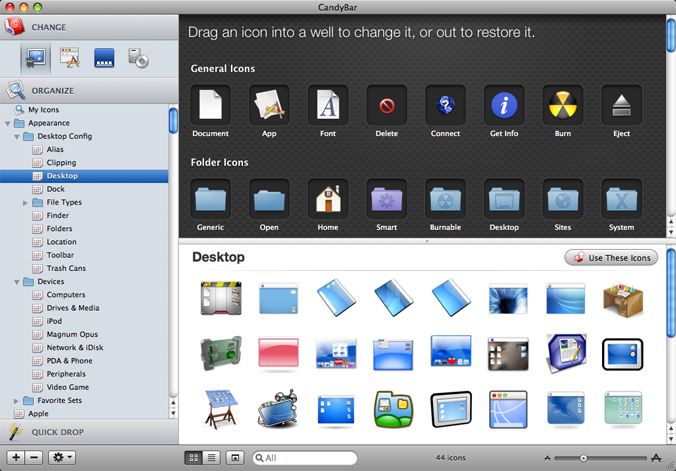
5. CandyBarCandyBar is a beautiful application in two ways – it’s quite attractive by itself, but it also allows you to make the rest of your computer more beautiful. CandyBar allows you to easily change your system icons and modify the appearance of the dock. Until recently, there was a separate application, called Pixadex, for maintaining your library of icons. With version 3 of CandyBar, the Pixadex and CandyBar functionality have been incorporated into one application. |
 |
 |
6. OmniWebOmniWeb is a great-looking application. But I’ll be honest, OmniWeb is only on this list because I thought there should be a browser representative. Of the browsers I have used – Safari, OmniWeb, Shiira, Firefox, Camino, and Opera – OmniWeb is the best looking. |
7. PixelmatorPixelmator is one of several new full-featured image editing programs that take advantage of the Core Image technology built into OS X. Everything in Pixelmator looks like a palette from one of Apple’s Pro applications (think: Final Cut, Motion). That ‘Pro’ theme has worked its way into Mac OS X via the Quickview feature in Leopard. But Pixelmator isn’t all beauty, it has some brains too. Coming in at under $60, Pixelmator is viewed by many as a cost-effective alternative to Adobe Photoshop for people who need to do a little editing, but don’t make their living at it. |  |
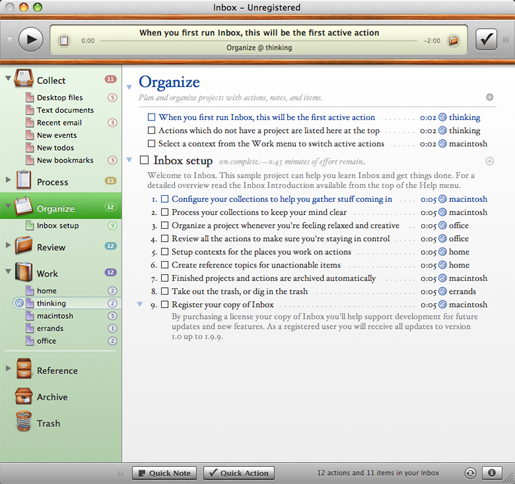 |
8. Midnight InboxMidnight Inbox is one of many GTD applications for Mac OS X. Unlike many GTD applications, which are essentially enhanced TO-DO lists, Inbox seems to be designed from beginning to implement the Getting Things Done workflow that David Allen describes in his book. While Inbox may be practical and useful, the reason it’s on this list is because it’s stunning to look at. If someone had told me that they planned to use lots of wood trim in the design of their Mac application, I would have laughed. Inbox has made me a believer. p.s. Yes, I haven’t bought Inbox yet. It’s possible that using Inbox would make my life 10 times easier and make me 10 times more effective. I just don’t have the time to devote to learning a whole new way of doing things. That, at least, is the benefit of an “enhanced TO-DO list” – you can improve your processes, you don’t have to learn entirely new ones. |
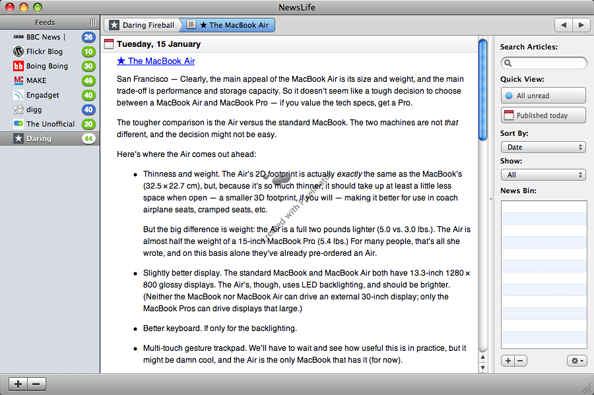
9. NewsLifeNewsLife debuted last summer in an attempt to dethrone NetNewsWire, the reining RSS champion for Mac OS X. Recently, Ranchero upped the ante by reducing the price for NetNewsWire to $0. NetNewsWire is the price king, and possibly the feature king (it certainly is in the minds of some), but Newslife is still better looking. |
 |
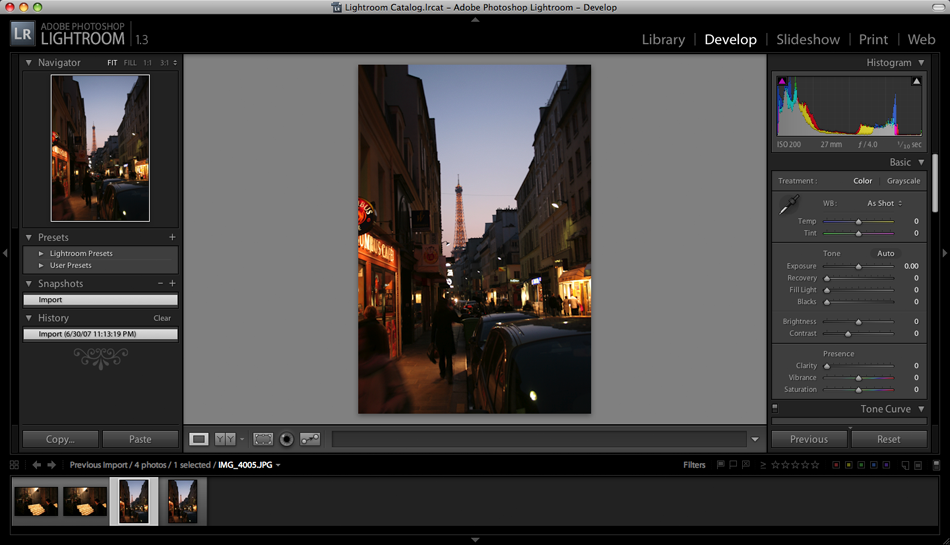 |
10. Adobe Photoshop LightroomAdobe Photoshop Lightroom is primarily for photographers (amateur or professional). I have to concede that photography falls a little outside the declared boundaries for the list (no design geek software!). Lightroom is just too good to leave off, though. It exemplifies all that is good and pure about the Apple ‘Pro’ style. |
Criteria
You might be looking at some of my choices and thinking, “it’s a nice piece of software, but it’s not exactly beautiful.” So what criteria did I use in choosing these 10? I am glad you asked. Overall appearance was, understandably, the largest factor. Looks alone weren’t enough, though. I also factored in usability and genre. The type of software is relevant because some kinds of applications are more difficult to make beautiful than others.
Finally, I also restricted each software publisher to one entry in the top 10. The publishers who lost out on account of this rule were Panic, The Omni Group, and Cultured Code (Cultured Code also lost out due to the non-geek requirement).
Macworld Roundup
January 17, 2008A few interesting tidbits from Macworld this week:
1. Time Capsule
Steve Jobs introduced Time Capsule in the keynote speech on Tuesday. Time Capsule is Apple’s new wireless network storage device that is intended to be used with Time Machine. One thing troubles me, though. Before Leopard was released, the developer versions of Leopard allowed Time Machine to be used with USB hard drives connected to an Airport Extreme. That functionality is not present in the release version of Leopard.
At first, many people thought there must be a technical reason – perhaps it required more testing. Now, it seems, that the motivation was purely financial – encouraging people to buy Time Capsule. I bought an Airport Extreme in anticipation of being able to use it to backup the computers in my house. Now it looks like I might have to use something other than Time Machine. Perhaps I’ll buy Chronosync licenses for the rest of my computers.
2. There be Dragon(s) Here!
One of the big names in speech recognition is Dragon Naturally Speaking. Many lawyers use Dragon while drafting letters, pleadings, motions, and other documents. Unfortunately, Dragon hasn’t been available on the Mac … until now.
MacSpeech, makers of iListen, announced a new product at Macworld – MacSpeech Dictate. MacSpeech iListen has received good reviews, but many have reported it being a little slow at times. For Dictate, MacSpeech licensed the Dragon speech recognition engine from Nuance. Simply put, Dragon is fast.
If you have been interested in dictation software but have been disappointed with the options available on the Mac, you may want to take a look at MacSpeech Dictate. You probably won’t be alone, either – Dictate won a Best of Show award at Macworld.
3. Ntractive Elements SBM Nnounced at Macworld
Tuesday at Macworld, Ntractive announced Elements SBM, their entry into the CRM software market (SBM stands for Small Business Management). Elements is a Web 2.0 application, meaning it utilizes advanced web application technologies. Because of this, Elements’ strength seems to lie in the ability to access your data from anywhere. Still, from the information available on the Ntractive website, it appears that some desktop integration is present. Ntractive is currently accepting sign-ups for their public beta. There is no word on when the beta is likely to begin, though. I am not sure that the Web 2.0 thing fits our needs, but I will still be signing up to take a look.
4. Fujitsu ScanSnap S300M
At Macworld, Fujitsu announced the ScanSnap S300M, a portable version of its popular ScanSnap scanners. The two main things you need to know about it are: 1) it runs off USB power; and 2) it doesn’t come with the full version of Adobe Acrobat. The ScanSnap S300M is expected to ship in March.
Edit: How could I forget the ScanSnap?
Mac GTD: OmniFocus and Things
January 9, 2008The past few days saw two big announcements related to Macintosh GTD software. Yesterday, The Omni Group announced the release of version 1.0 of OmniFocus. I have been using OmniFocus since the private beta, and really enjoy using it.
We also saw the public release of Things, a new GTD app from the makers of Xyle Scope. Xyle Scope is an excellent application that I have used for quite some time (but I expect that most of my readers haven’t – it’s primarily useful for web developers). Things looks quite good, and I look forward to trying it out. The name “Things” does make for some interesting grammar, doesn’t it?
Some of the similarities and differences between OmniFocus and Things are readily apparent from the Things video demo. I am really curious how Things’ emphasis on tags plays out in every day use. I am going to reserve a full review and comparison with OmniFocus until Things gets closer to a 1.0 release.
Review: Daylite in an Estate Planning Practice
January 6, 2008Daylite is a well-regarded productivity and CRM program for Mac OS X from Marketcircle. Several months ago I purchased a copy of Daylite for my wife’s estate planning practice. At the time, Daylite seemed like a good CRM solution and came highly recommended. We started and ended our CRM journey with Daylite, but the path in between those points was anything but a straight line. This article describes that journey. It is written from the perspective of an estate planning practice, but will no doubt apply to many kinds of law practices (and other businesses).
Despite spending the money on Daylite, we never quite got around to incorporating Daylite into the everyday processes of my wife’s law practice. As with many business owners, there were just too many things that needed to be done today to get involved with something totally new. That’s how things sat until a few weeks ago, when getting new CRM software running took on “must be done today” status. After studying my wife’s law practice and thinking about how she would use the software, we came up with the following requirements:
- Manage contact information, including client data
- Manage appointments and to-do items
- Automatically create to-do items associated with each stage in the estate planning process
- Keep track of all meetings and communications with each contact
- Keep track of all documents associated with each contact
Since we already had a license, we first took a look at Daylite. Previously, we had only used the Daylite demo database – this time we used live data. As we began to use Daylite with live data, it seemed like Daylite wouldn’t be able to do everything we wanted. We didn’t see a way to associate files with a contact. There also didn’t seem to be a way to automatically create a series of tasks whenever a potential client made an appointment or a new client retained the firm. Two very important requirements seemed absent in Daylite.
Being easily deterred (for the moment), we looked at several other solutions, including Bento – as I previously wrote about – and FileMaker Pro. Neither seemed a good fit. Bento can’t automatically create groups of tasks and has limited search and reporting capabilities. You can create and view records, but that’s about it. FileMaker Pro can seemingly do it all. The only problem is, FileMaker Pro doesn’t do it already. There are a few CRM templates available, some designed especially for law firms. None, however, did everything that we wanted. So we came full circle and started looking again at Daylite.
Daylite can, of course, do all the things I thought it couldn’t. I found that out when I read the manual and started asking questions on the Marketcircle forums. I have to admit that I didn’t read the manual when I first installed Daylite. I had (I thought) a good reason, though. Daylite looks like many programs I have used before – a dash of Entourage, a sprinkle of Mail and iCal. I thought I could “figure it out” just by reading the labels on buttons and trying various options.
But Daylite’s apparent simplicity is deceiving. The power of Daylite is in creating things (e.g. contacts, organizations, groups, projects, opportunities, tasks, appointments, notes) and linking them to other things. It is these relationships, in addition to the data on the thing itself (e.g. contact name, addresses, phone numbers), that carries the information.
For example, using Daylite, a rainmaker can record every interaction with each rainbroker. A rainbroker will be a contact in Daylite, as will each client referred by that rainbroker. The clients can be associated to the rainbroker with a “referred by” type of link. Each phone call with the rainbroker can be logged. Each email to or from the rainbroker can be linked to the contact entry in Daylite with DMI. Files from other applications can also be associated with the rainbroker in Daylite. By creating and searching on relationships between data, Daylite can accomplish items 1, 4, and 5 from our requirements list.
The remaining requirements relate to task and appointment management. My wife typically meets with each estate planning client four times from start to finish. At each stage, there are tasks that must be completed. Most tasks either depend upon other tasks (so they must be completed in a particular order) or are time-sensitive for other reasons (for example, calling to confirm the appointment on a particular day).
Daylite makes all this happen with Projects and Activity Sets. A Project will be created in Daylite for each estate plan my wife prepares. Creating a Project in Daylite provides two main benefits. First, the estate planning lifecycle is tracked with a pipeline for the Project. We created a single pipeline, with stages for each of the major milestones in the estate planning process (e.g. appointment, initial consultation). Second, all the important contacts, tasks, appointments, and files relevant to the estate plan can be linked to the Project. All of those things could be linked to the client contact, but that becomes problematic when the client comes in for their second estate plan.
Daylite also makes it easy to create multiple tasks for a Project with Activity Sets. An Activity Set is a group of tasks that are all keyed off of the same date. There are two types of Activity Sets – forward and reverse. In a forward Activity Set, dates for each task are measured by counting a certain number of days after the Activity Set begin date. In a reverse activity set, dates are measured by counting back from the Activity Set end date.
We created five Activity Sets for the typical estate plan, plus several more for the tasks required in advanced planning. There is a single forward Activity Set that begins on the day the client appointment is made. The remaining four standard Activity Sets are reverse Activity Sets that end on the day of the client appointment. The tasks in the Activity Sets are given categories based on the type of work the task involves (e.g. phone call, document preparation, document review, sending documents through via postal mail or fax). At the beginning of the day, my wife (or once we get it set up, an assistant) can see a list of everything that she has to do that day and what type of work is involved.
So, despite the initial uncertainty, it looks like Daylite will do everything we currently need it to. There are certainly things that might be useful that a fully-integrated CRM package could provide. For example, it would be nice to be able to create a report showing each rainbroker and how much in total billings they have referred to the firm (for any time period – all time, past year, current year). Hopefully, more advanced reporting will be possible once Marketcircle provides direct read access to the Daylite database – something that will apparently happen this month. Daylite is a great piece of software, but it still falls prey to one of life’s axioms: as soon as you have what you want, you want something more.
One note about buying Daylite: we purchased our copy of Daylite from the Apple Store, which sells Daylite for the same price as the Marketcircle web store. Since then, I discovered that MacMall
sells Daylite for more than $20 cheaper than either the Apple Store or Marketcircle.
Wherefor So Few Screencasts?
December 27, 2007After a little bit of a lull, I have been buying more software recently. The reasons why, I think, is that many of the websites have used screencasts to promote their software. Screencasts make for a much more compelling sales presentation. I probably would have looked right past OmniFocus if it hadn’t been for a very long screencast The Omni Group posted to their website. Screenshots and feature lists simply can’t capture the subtle interface details of many great programs.
Another such program, and the reason for this post, is 1Password. I took another look at it because of a post by Aaron Pelley over at his Criminal Defense Law with an Apple blog. I purchased a family license for 1Password today, and it was all thanks to the screencast on the 1Password website. I actually looked at 1Password a while ago when I was searching for an encrypted data manager. I wasn’t that interested in 1Password because it looked like a simple browser plugin that just upgraded the built-in auto-complete and password memory features. As the screencasts demonstrate quite well, 1Password is much more than that.
I ended up purchasing Data Guardian. I am quite happy with it, but it isn’t very well integrated with the browsers. As it happens, I am still glad I purchased Data Guardian because it is a great place to store credit card numbers, email passwords, and software license codes.
If my experience is representative, we will probably start seeing more and more screencasts as smart software publishers take advantage of a great way to market sophisticated software. I am a little surprised, though, that people aren’t picking up on this trend faster.