
Archive for the 'Reviews' Category
Lexis and Westlaw Mac Browser Lineup
March 22, 2008Mac Law Students posted a nice review today of the current state of the Mac browser field. The focus of the review is how nicely each of the eight browsers reviewed plays with LexisNexis and Westlaw. Safari 3.1 seems to be the best of the bunch (which isn’t surprising given the effort put in to making Safari standards-compliant). Really, though, none of the browsers did poorly. It’s obvious that both Lexis and Westlaw are designing their sites now with more than just the Windows / Internet Explorer world in mind.
I like (and dislike) a variety of things about Lexis and Westlaw. During law school I primarily used Lexis because Westlaw has historically not played well with tabs. Westlaw’s frame interface throws a wrench into my use of tabs. Invariably, I would click on a Westlaw link in the current tab and nothing would happen – or so it would seem. What actually happened was that a page somewhere on one of my other tabs had been replaced because Westlaw decided that particular tab had the window the page should be loaded in.
One reason I do like running Westlaw on a Mac browser is that Westlaw prints and downloads work better. I am not sure if it’s a bug or a feature, but if I switch to another application while doing a Westlaw print in Internet Explorer (on Windows XP), the Westlaw popup window closes and the print stops. The same thing happens if I switch applications during a download. It’s irritating that Westlaw forces me to sit there and watch, unable to do any other work on the computer, while it’s building the pages. Westlaw doesn’t do this on any of the Mac browsers I tried. For some reason I haven’t tried Westlaw on Firefox for Windows. Does anyone know if Firefox for Windows has this “feature”?
One omission from the review is Firefox 3.0. The Firefox team recently released Firefox 3.0 Beta 4, and I haven’t encountered any problems with it (unlike with Beta 2). Firefox 3.0 is getting close enough to an “everyday browser” that it should probably have been included.
Mozy: Offsite Secure Backup
March 10, 2008Data integrity is pretty important to lawyers. We need to make sure our client’s data is available and protected. Failure to do so could even be an ethics violation. With that in mind, I have been looking for a backup solution for my wife’s estate planning practice. I may have found what I am looking for in Mozy.
Mozy is a company (which is part of the EMC family) offering secure online backups of your computer files. Mozy offers three levels of service: MozyHome, MozyPro, and MozyEnterprise. Currently, on MozyHome supports Mac OS X. You’ll need to be running Windows 2000, Windows Server 2000, or any newer versions of Windows to take advantage of MozyPro or MozyEnterprise. In this article, I will talk about MozyHome, but much of the information will apply equally well to MozyPro and MozyEnterprise (take a look at the Mozy product feature comparison chart). I signed up for a free 2GB MozyHome account. MozyHome accounts with unlimited storage are also available for $4.95 per month.
Getting Started
Using MozyHome requires installing the Mozy backup software. The Mozy software works similarly to Apple’s .Mac Backup application when choosing which files to backup. You can choose one or more backup sets to be included in the Mozy backup. A backup set can be an entire folder or a spotlight search that is run against a folder (or even your entire computer). The software also supports a simpler backup mode where you can choose a single directory or file to be backed up.
Security
Your files are transmitted securely to Mozy’s servers using 128-bit SSL encryption. This is the same kind of security you will find on many banking websites and other websites which ask for or display your personal or financial information. Once on Mozy’s servers, your data is protected with 448-bit Blowfish encryption. You can choose to either use Mozy’s encryption key (which the software lists as “recommended”) or use your own key. Using Mozy’s key might mean less strain on their servers, but it’s not going to mean better protection for you. If anything it will mean the opposite: if someone breaks into Mozy’s servers and gets the Mozy key, all of your data is vulnerable. If you’re using your own key, the attacker will have an extra hurdle to getting at your data.
Backing Up
Setting up was quick and very straightforward. Backing up? Not so much. A trip to the dictionary might help us understand.
mo·sey
intr.v. mo·seyed, mo·sey·ing, mo·seys Informal
1. To move in a leisurely, relaxed way; saunter.
alternate: mozy
Ok, that list part wasn’t in the dictionary – but it should be. Mozy was quite leisurely and it didn’t appear to be in any hurry to backup my files. The initial backup of 1.5GB involved many false starts (broken connections) and finally finished 3 days after it started. Upload speeds ranged from 1.6 to 114.5 KB/s. That first number might help explain why the initial backup took so long. Even that second number, though, could be troubling for people who have 10-20GB or more of data to backup. Backups seem to happen pretty infrequently also. Mozy seems to only perform a backup about once a day, and I can’t find a way to alter that frequency.
Restoring Data
Using the Mozy software you can view your backed up files and traverse the directories in the same manner as the Finder’s column view mode. Unfortunately, there is no preview ability, so you just have to know what you’re looking for. Prior to Leopard, this wouldn’t have been an issue because that’s the way it’s always worked. Quick Look changed expectations – it’s the new baseline for required features. You can choose which backup to restore a particular file from by choosing a date from the Backup Date menu. It’s not clear whether multiple versions of changed files are retained or whether it simply allows you to filter the list and find what you are looking for more quickly. In either case, it’s of limited usefulness without the ability to preview files.
Mozy also makes you choose where the restored file will appear (the default restore location is the Desktop). Having the flexibility to make it appear anywhere is nice. The restore location should default, though, to the folder the file came from.
Conclusion
Pros: Easy to setup; flexible backups using backup sets; solid encryption (if not quite top-of-the-line); free 2GB backup.
Cons: Only backs up files every day or two; no ability to preview files before restoring; slow backups.
Bottom Line: I’ll probably start using MozyHome to make offsite backups of critical client files. That is the kind of backup where you never plan to restore, unless your office is destroyed in a flood and all of your computer equipment is swept away. For everyday backups – the kind where you need to restore a file you accidentally deleted – Time Machine is a far superior solution. If you’re a lawyer or run any other kind of business that involves valuable or private data, you probably need both. Mozy provides a good second layer of backup behind Time Machine.
Review: Daylite in an Estate Planning Practice
January 6, 2008Daylite is a well-regarded productivity and CRM program for Mac OS X from Marketcircle. Several months ago I purchased a copy of Daylite for my wife’s estate planning practice. At the time, Daylite seemed like a good CRM solution and came highly recommended. We started and ended our CRM journey with Daylite, but the path in between those points was anything but a straight line. This article describes that journey. It is written from the perspective of an estate planning practice, but will no doubt apply to many kinds of law practices (and other businesses).
Despite spending the money on Daylite, we never quite got around to incorporating Daylite into the everyday processes of my wife’s law practice. As with many business owners, there were just too many things that needed to be done today to get involved with something totally new. That’s how things sat until a few weeks ago, when getting new CRM software running took on “must be done today” status. After studying my wife’s law practice and thinking about how she would use the software, we came up with the following requirements:
- Manage contact information, including client data
- Manage appointments and to-do items
- Automatically create to-do items associated with each stage in the estate planning process
- Keep track of all meetings and communications with each contact
- Keep track of all documents associated with each contact
Since we already had a license, we first took a look at Daylite. Previously, we had only used the Daylite demo database – this time we used live data. As we began to use Daylite with live data, it seemed like Daylite wouldn’t be able to do everything we wanted. We didn’t see a way to associate files with a contact. There also didn’t seem to be a way to automatically create a series of tasks whenever a potential client made an appointment or a new client retained the firm. Two very important requirements seemed absent in Daylite.
Being easily deterred (for the moment), we looked at several other solutions, including Bento – as I previously wrote about – and FileMaker Pro. Neither seemed a good fit. Bento can’t automatically create groups of tasks and has limited search and reporting capabilities. You can create and view records, but that’s about it. FileMaker Pro can seemingly do it all. The only problem is, FileMaker Pro doesn’t do it already. There are a few CRM templates available, some designed especially for law firms. None, however, did everything that we wanted. So we came full circle and started looking again at Daylite.
Daylite can, of course, do all the things I thought it couldn’t. I found that out when I read the manual and started asking questions on the Marketcircle forums. I have to admit that I didn’t read the manual when I first installed Daylite. I had (I thought) a good reason, though. Daylite looks like many programs I have used before – a dash of Entourage, a sprinkle of Mail and iCal. I thought I could “figure it out” just by reading the labels on buttons and trying various options.
But Daylite’s apparent simplicity is deceiving. The power of Daylite is in creating things (e.g. contacts, organizations, groups, projects, opportunities, tasks, appointments, notes) and linking them to other things. It is these relationships, in addition to the data on the thing itself (e.g. contact name, addresses, phone numbers), that carries the information.
For example, using Daylite, a rainmaker can record every interaction with each rainbroker. A rainbroker will be a contact in Daylite, as will each client referred by that rainbroker. The clients can be associated to the rainbroker with a “referred by” type of link. Each phone call with the rainbroker can be logged. Each email to or from the rainbroker can be linked to the contact entry in Daylite with DMI. Files from other applications can also be associated with the rainbroker in Daylite. By creating and searching on relationships between data, Daylite can accomplish items 1, 4, and 5 from our requirements list.
The remaining requirements relate to task and appointment management. My wife typically meets with each estate planning client four times from start to finish. At each stage, there are tasks that must be completed. Most tasks either depend upon other tasks (so they must be completed in a particular order) or are time-sensitive for other reasons (for example, calling to confirm the appointment on a particular day).
Daylite makes all this happen with Projects and Activity Sets. A Project will be created in Daylite for each estate plan my wife prepares. Creating a Project in Daylite provides two main benefits. First, the estate planning lifecycle is tracked with a pipeline for the Project. We created a single pipeline, with stages for each of the major milestones in the estate planning process (e.g. appointment, initial consultation). Second, all the important contacts, tasks, appointments, and files relevant to the estate plan can be linked to the Project. All of those things could be linked to the client contact, but that becomes problematic when the client comes in for their second estate plan.
Daylite also makes it easy to create multiple tasks for a Project with Activity Sets. An Activity Set is a group of tasks that are all keyed off of the same date. There are two types of Activity Sets – forward and reverse. In a forward Activity Set, dates for each task are measured by counting a certain number of days after the Activity Set begin date. In a reverse activity set, dates are measured by counting back from the Activity Set end date.
We created five Activity Sets for the typical estate plan, plus several more for the tasks required in advanced planning. There is a single forward Activity Set that begins on the day the client appointment is made. The remaining four standard Activity Sets are reverse Activity Sets that end on the day of the client appointment. The tasks in the Activity Sets are given categories based on the type of work the task involves (e.g. phone call, document preparation, document review, sending documents through via postal mail or fax). At the beginning of the day, my wife (or once we get it set up, an assistant) can see a list of everything that she has to do that day and what type of work is involved.
So, despite the initial uncertainty, it looks like Daylite will do everything we currently need it to. There are certainly things that might be useful that a fully-integrated CRM package could provide. For example, it would be nice to be able to create a report showing each rainbroker and how much in total billings they have referred to the firm (for any time period – all time, past year, current year). Hopefully, more advanced reporting will be possible once Marketcircle provides direct read access to the Daylite database – something that will apparently happen this month. Daylite is a great piece of software, but it still falls prey to one of life’s axioms: as soon as you have what you want, you want something more.
One note about buying Daylite: we purchased our copy of Daylite from the Apple Store, which sells Daylite for the same price as the Marketcircle web store. Since then, I discovered that MacMall
sells Daylite for more than $20 cheaper than either the Apple Store or Marketcircle.
Mini-Review: Fujitsu ScanSnap S510M
December 31, 2007
One of the first things we bought when setting up my wife’s law practice was a Fujitsu ScanSnap. When my wife first told me she needed a ScanSnap, I responded that we had a scanner – you know the kind, one of those free printer-scanner-copiers you can get when buying a Mac (both the Apple Store and MacMall
frequently offer this promotion). I was then informed that preparing an estate plan requires lots of scanning – to the tune of a few dozen of pages for each estate plan. A flatbed scanner clearly wasn’t going to be sufficient, so we got a Fujitsu ScanSnap S510M.
MacWorld posted a review of the Fujitsu ScanSnap S510M over the weekend. Our experience with the S510M has been generally positive, but it hasn’t worked as well for us as it did for the MacWorld reviewers.
When the S510M first arrived, I was pretty amazed. The scanner was fast, pretty easy to use, and came with a copy of Adobe Acrobat. There have been a few frustrations, though. The MacWorld review states that the S510M is “much less prone to sending through multiple sheets at a time.” I don’t know how well the earlier ScanSnap models performed, but the S510M could still use some improvement. Pages that were stapled, paper-clipped, or three-hole-punched will sometimes go through the scanner together. Fixing the problem usually involves either several tries or carefully feeding the sheets in one at a time.
Overall, we’re happy with our ScanSnap S510M. Even with the sheeting feeding problem, using a ScanSnap is still much faster than using a flatbed scanner.
Save on a Scan Snap: Through the end of the day today, MacMall is offering the ScanSnap S510M at only $390 after a mail-in rebate. I wish that promotion had been going on when we bought ours. If you miss the special, the regular (non-rebate) price of $440 is still a pretty good deal.
Mini-Review: Timeline
December 18, 2007Bee Docs recently released the second version of Timeline, their chart creation program for Mac OS X. When I first saw the announcement, I thought “that is going to be a great tool for litigators.” Almost any type of litigation has some kind of timeline worth showing. And from the samples on the Bee Docs website, it looks like Timeline can create some beautiful timelines.
But, as Lee Corso would say, “not so fast, my friend.” I tried out Timeline today and it seems like it is almost there. To start with, Timeline is very easy to use. After choosing a theme, you can begin adding events to your timeline right away. Timeline does sport some iLife integration (Address Book, iCal, iPhoto, and iTunes), but these options all seem more like fun things to play around with at home, rather than useful business tools. As you add entries to your timeline, the scale automatically shrinks or expands to accommodate your entries (more on that later).
Timeline has many appearance options. The default color settings can be modified. Pictures can also be added, either as a background image or as labels for your timeline entries. And, as you would expect, the font used for your timeline can also be changed.
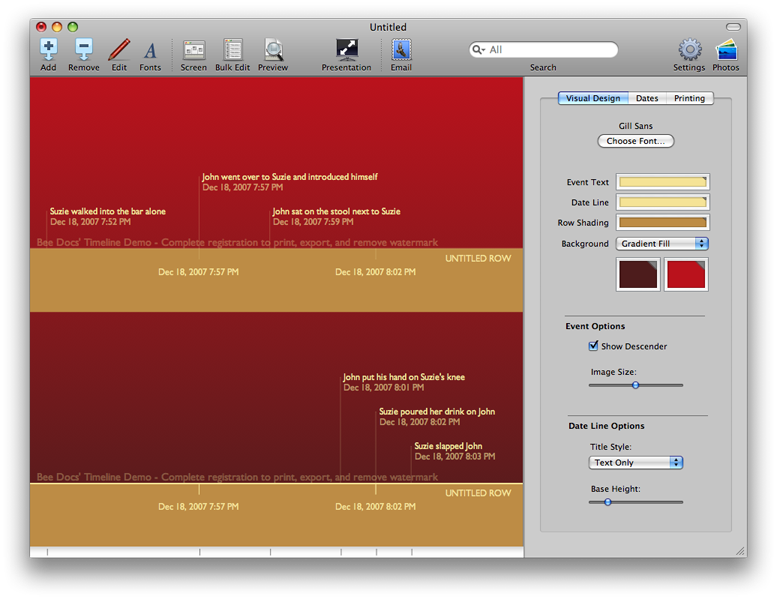
Timeline is still a little rough around the edges, though. Often while creating the timeline, I wished that I could manually change things that Timeline does for me. I want to change the span of the timeline, but I can’t. That feature would be particularly helpful when two timelines are being created on the same page (see the screenshots for an example). Ideally, I would like the second row to pick up at the spot where the first row ended. Timeline, though, seems to require both rows to have the same timespan.
There are other little annoyances. New events are added in a small popup window. The window can’t be moved, though, and any attempt to do so simply adds an event with whatever data you had entered when you tried to move it. I would also like to be able to manually place the event titles vertically. I like the fact that Timeline can handle all the layout so I don’t have to. But, I would also like the option of moving things around a bit to create the exact visual impact I am looking for.
I am really hoping for a Timeline version 2.1. I think with just a few more tweaks and features, Timeline could be a program really worth using.

|
|