
Archive for the 'Reviews' Category
MacNN Reviews Bento
April 26, 2008I have posted about Bento in the past (here and here). I have been meaning to give Bento a more complete review treatment because I know that many of you have been looking for information about Bento. Right now I am in the middle of a series of GTD reviews (that got off to a great start and should be reaching stage two soon). In the meantime, head on over to MacNN to see a pretty good introductory review of Bento (part one and part two).
Koingo Disappoints
April 21, 2008My method for storing passwords and other private information has been something of a moving target. I have recently been using Data Guardian from Koingo Software to store my private data. I have heard rave reviews of another program for storing private data, 1Password (a fact I have blogged about before). I have purchased a few licenses to 1Password and have seriously looked into switching over. The switching costs are high, though, and I haven’t made the move yet. Events from the past week have put that move on a definite timetable: as soon as possible.
A couple of weeks ago I downloaded the new release of Data Guardian (version 1.3.7). This new version came with a new feature: Smart Crash Reports. Judging from the recent announcements on their website, it looks like Koingo is adding Smart Crash Reports to all their applications. Starting up Data Guardian presents this straightforward dialog.

The Don’t Ask Me Again check box is supposed to prevent this dialog from appearing again even if I select the Don’t Install option. The problem is, it doesn’t work. Strangely, it works for a while. But if I let a few hours go by after I close Data Guardian, I get asked again.
Naturally, I contact Koingo about this problem. I opened a support ticket explaining the problem. The next day my ticket was closed with the message:
Please contact Unsanity at Unsanity.org
I tried sending an email to the main email contact for Koingo but got no response. Since the support ticket was responded to quickly, I decided to submit another bug report. This time I explained that Smart Crash Reports was part of their software (it even shows up in the revision log) and I expected Koingo to fix the problem. I received the following response within minutes of submitting the report:
Yes, we added the functionality, but the bug is in the Smart Crash Reports engine, not our software. It is separate.
Smart Crash Reports is a product of Unsanity, a fact easily confirmed by visiting the website identified on the installation dialog. I could easily contact Unsanity. But that’s not the point. The bottom line is that Koingo added a feature to their product – a feature that benefits no one except Koingo. And this new feature doesn’t work right. Koingo should fix what it broke. That is true whether it is a show-stopper bug or something that is closer to the annoyance level (like this one).
The Koingo slogan (from their website) is “Dedicated to Perfection.” It appears that Koingo’s dedication only goes so far. Perfection isn’t necessary so long as the problem can be blamed on someone else. So I have decided not to use Koingo software anymore. I shouldn’t trust an application with my data if I don’t trust the developer. Hopefully 1Password will do everything I want it to do because I am diving head first into a change.
Update: Data Guardian 1.3.8 adds the following feature: “New Feature: Ability to disable smart crash reports.” I’m happy to see Koingo listen to their customers and take ownership of the problem.
Review: Things
April 7, 2008This is the first of four reviews of task management software for the Mac. I plan to review Things, OmniFocus, Inbox, and iGTD. I’ll probably top it off with a roundup article, that does more comparing and contrasting than in the individual reviews. Each of the four programs I will review is consistent with, if not explicitly modeled after, David Allen’s Getting Things Done (GTD) methodology. I have learned a few things from David Allen, but I haven’t fully embraced the GTD workflow. When appropriate, I will try to point out features that might be important to those striving to live the GTD life.
Introducing Things
When Cultured Code first announced Things I knew we were in for a treat. I have been using Xyle Scope, a web designer tool, for quite some time and have been very happy with it. There’s a lot to like about Things. I liked Things so much, in fact, that it made it onto my list of the 10 Most Beautiful Mac Applications (for Non-Geeks). Things is still beta software, so some things may change between now and the 1.0 release.
Things is a task manager. It’s for people who need to keep track of more than a few tasks at a time (which in my experience is basically everyone). The idea behind Things is to give you a single place to put all of your tasks and related information. Let’s take a look and see how well it works in practice.
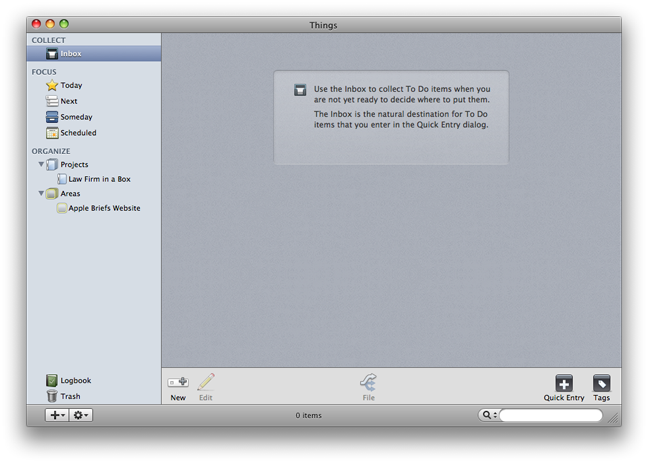
The Basic Elements
You’ll spend most of your time in Things creating and manipulating tasks (called a To Do). All tasks have a title, and you can also include one or more tags, notes, and a due date. A task can also be set up to be repeating (more on that later). Entering a task is quite easy, and can be initiated by choosing the New task menu item, clicking on the New task button, or launching the Quick Entry window.

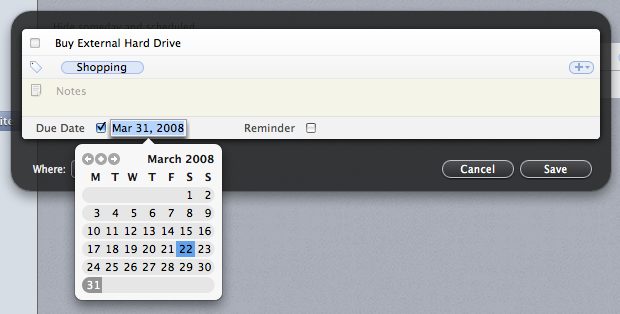

What sets Things apart from the other Mac GTD apps I have tried is its reliance on tags. A tag is a keyword, label, or other piece of information that is associated with the task. Things has a panel for managing your tags, but you can also create tags on the fly just by typing them into the tags input box for a task. Things tag entry also supports autocompletion and single-character shortcuts for faster tag entry. Tags aren’t just informational, they can also be used to focus on a particular subset of your tasks. At the top of the main window is a tag bar that allows you to select a tag, restricting your view to only those tasks with the matching tag. You can select more than one tag by holding down the Shift or Command key. Selecting multiple tags performs a logical “AND” operation (meaning all tags have to be present on a tag for it to be listed). I think an “OR” operation (meaning a task will be listed if any of the tags is present) would be more useful based on the time I spent with Things.
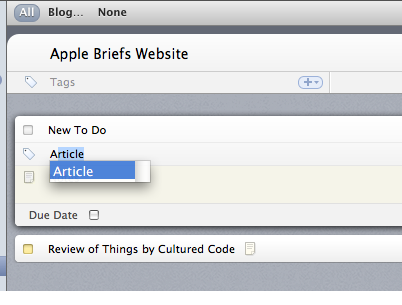


Tasks can be organized in two basic ways: projects and areas. A project represents a series of tasks necessary to reach some larger goal. An area represents a category of tasks or tasks that are related to an ongoing activity. Projects and areas differ in a number of ways. Projects are meant to be completed, so they have a box to check when the task is completed and can have a due date. Areas, on the other hand, are never completed. An area is simply a bucket for tasks that fit some description.
Sub-projects and sub-areas are not allowed right now. The sub-area limitation seems easy get around by using tags, but the lack of sub-projects seems like an oversight. An area can contain a project, but creating one is a little flaky. The only way to make a project in an area is to click the New project button at the bottom of the main window while an area is selected. Choosing the New Project menu item from the File menu or the sidebar menu (accessed by clicking the + button) will only create a top-level project.
Managing the Flow
 Things has a number of bins (for lack of a better word) in the sidebar for organizing and working with your tasks. At the top is the Inbox, which serves as a place to create and hold tasks until you are show how to categorize them. Below the Inbox are the four Focus lists: Today, Next, Someday, and Scheduled. How these lists work will make the most sense if we start at the bottom.
The Scheduled list allows you to postpone a task until a particular date. The Someday list is like a permanent “snooze” button, providing a place for you to defer tasks indefinitely. The Next list is the big list of your uncompleted tasks. By default, only the next 3 tasks from each Project will be displayed (which makes sense because project tasks are generally intended to be performed sequentially). If Next is the big list, Today is the focused list. In Things, “Today” doesn’t really mean just “today.” The Today list holds tasks scheduled for today, overdue tasks, and any other tasks you decided to add to the list. It appears that a task will stay in the Today list until it is completed or deleted. The relationships between the lists are much more complicated than I have described here. Check out the Things wiki for more details.
Below the Focus lists are folders that contain your Projects and Areas. Right now selecting one of the folders doesn’t provide much information – just the name of each Project (or Area) and the number of tasks inside. Hopefully this feature will be beefed up by the 1.0 release.
At the bottom of the sidebar, next to the trash is the Logbook. When a task is completed, it will be archived to the Logbook. That gets the task out of the way while still keeping a record of it for future reference. I am a little puzzled by the fact that I can still edit tasks once they are in the Logbook. I would also like the Logbook to show the project or area where the task originated (possibly after the description of the task).
That’s Nice, But How Well Does It Work?
Things is structured around the GTD workflow. The Things sidebar has sections for collecting (the Inbox bucket) and organizing (the Today, Next, Someday, and Scheduled lists). The GTD workflow Process, Review and Do steps involve working in all of these sections. Things also attempts to incorporate the levels of focus concept by including projects and areas.
In my limited trial, I did not use the Inbox very much. I still haven’t gotten to the point where I collect everything I am going to do into one bucket. I am, however, very much project-oriented, and I like those projects to be organized. The Things project and areas features fit into my current workflow quite nicely.
I liked the ability to work at varying levels of focus. When I want to see what’s currently on my plate, I can work in the Focus section (either Today or Next). At the same time, I can easily look at the project as a whole – to add tasks, see what is coming up, or move things around a bit – by going to the Organize section.
Tags were a mixed bag. I liked the ability to assign tags to tasks because I have difficulty coming up with a single category that is sufficiently descriptive. That’s just too much pressure! On the other hand, I never found myself filtering tasks by tags because there wasn’t any need to. Tags would probably be more useful for someone who has hundreds of tasks. In my case, they served as useful reminders about the tasks but that was all.
Please Find Something to Complain About
I had to look hard, but I was able to find a few things I don’t like about Things. One is quite glaring, the others a little more subtle. The glaring problem is the lack of context menus. Just about anywhere I right-click (or control-click) I expect to see a menu appear. Not so in Things. Right-clicking on an element in the sidebar or a task in the main window does nothing. It fees very un-Maclike.
Speaking of un-Maclike features, I would like to see better drag-and-drop support. I understand that this might be an advanced feature, so I am not complaining about its absence so much as putting in a feature request. Dragging a URL to Things makes a new task with the URL as the description. It makes more sense to me that the URL would appear in the notes. And while we are putting URLs in the notes, imagine if Things made them clickable too! I would also like to be able to drag in (clickable) links to files on my own computer. Daylite already does this, and it’s a difficult feature to have to give up.
Another issue I had was with Repeating tasks. Setting a task to repeat every day literally creates a new task every day. If you’re not paying attention or go away for a few days you will find your Today list filling up with tasks – all identical. Since they are identical, I don’t see the need to create multiple copies. If you do want to allow for that possibility, at least make it an option that is turned off by default.
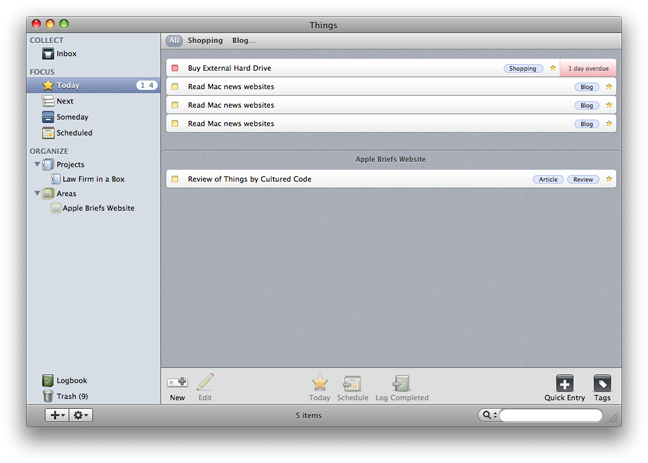
Finally, I would like to have an option to see my task notes more easily. Currently I have to double click on a task to enter edit mode to see the notes. An icon does appear on the task to remind me of the note. Getting to the note is far too difficult, though. Most of my notes are short – a maximum of one or two lines. Short notes could easily be shown in the entirety, with longer notes having a “more” link or button that would expand the entire text.
Final Notes
Overall, I enjoyed using Things. The interface is intuitive (context menus aside) and quite creative in how information is presented (a good example is how overdue tasks are displayed both in the sidebar and in the Today window). I think that with a few tweaks Things could become a truly great task management application.
More to Come
As I said at the outset, this review was based on a beta release of Things (version 0.9.1). I am sure I’ll have more to say (hopefully all good) when the release version arrives.
MacWorld Reviews OmniFocus
April 4, 2008MacWorld today (that’s yesterday for those of you in the East) posted a review of OmniFocus. I point this out primarily to put in an early plug for my Things review that I will be wrapping up over the weekend and posting Monday. The review is short, but hopefully it will give you enough of a GTD fix until Monday.
Mac Browser Lineup, Part Deux
March 31, 2008Not to be outdone by Mac Law Students’ excellent article, Macworld today posted their own Mac Browser Roundup. It’s light on lawyerly details, but it covers the basics quite well. I still run with my own mix of Safari, OmniWeb, and Firefox (3.0 beta) for reasons that are beyond explanation.