
Archive for the 'Mac OS X' Category
10 Most Beautiful Mac Applications (for Non-Geeks)
January 21, 2008One of the things that has drawn me to Macintosh computers is that there are so many beautiful applications. Many Mac applications look good simply because the basic window elements in OS X are attractive. There are a few Mac applications, though, that raise the bar. After being particularly impressed with a recent new application, I decided to list my top 10 most beautiful Mac applications.
I didn’t want to include just any beautiful application, though – I also wanted the list to be useful to my readers. In addition to being a lawyer, I am also a web developer and graphic designer. Many of the applications I use regularly wouldn’t be interesting to most lawyers or business owners. Therefore, I decided to limit the list to personal and business applications – no web-geek or design-geek stuff allowed! Here then, in (mostly) no particular order, is my list of the 10 most beautiful (non-geek) applications for Mac OS X:
1. iTunesAlmost everyone in the civilized world probably recognizes iTunes as Apple’s music, TV, and movie catalog and player. Since the very first release, iTunes has been ahead of the interface curve. Design elements introduced in iTunes have slowly made their way to the rest of OS X. It’s easy to see why. iTunes is functional and very pleasing to the eye. |
 |
 |
2. Delicious LibraryDelicious Library isn’t just beautiful, it’s also very innovative (I am not the only one who thinks so – they have an impressive list of awards at the bottom of their home page). Delicious Library is a book, movie, and video game catalog application. Titles in your library can be displayed in a list or in bookshelf mode. List mode is quite functional, but it is bookshelf mode where Delicious Library really shines. The book, movie, and game covers – downloaded automatically from the internet ‐ and wood bookshelf are very attractive. I just wish there was a choice of wood for the bookshelf. |
3. ThingsThings was actually one of the applications that prompted me to create this list (even the disk image looked pretty nice). Cultured Code’s other application – Xyle Scope – is also quite comely, but it doesn’t make this list because it is a tool for website designers. Things is the latest entry into a very crowded space, the GTD / notebook software. It’s an attractive entry too – and, although not reflected in the screenshot here, looks better and better as you enter more data. |
 |
 |
4. iStat ProiStat started small, as a series of Dashboard widgets. Those widgets grew into iStat Pro, a single combo widget, and iStat 2.0, a desktop version. iStat Pro gives me one place to look to see the current status of my computer – RAM and processor usage, free disk space, uptime, and much more. It’s also quite attractive – iStat Pro is minimalist, yet stylish. |
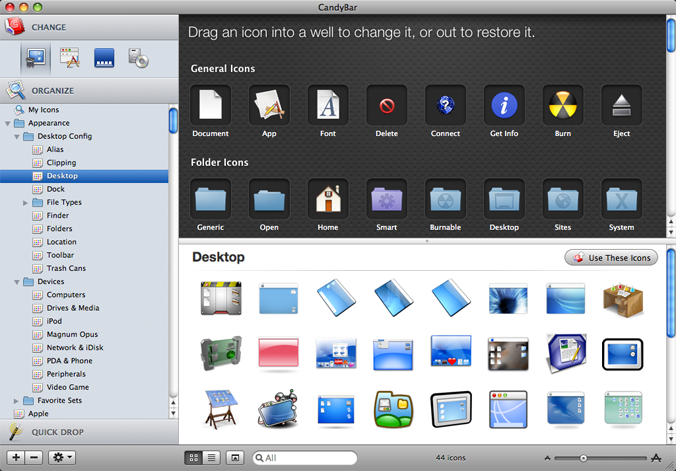
5. CandyBarCandyBar is a beautiful application in two ways – it’s quite attractive by itself, but it also allows you to make the rest of your computer more beautiful. CandyBar allows you to easily change your system icons and modify the appearance of the dock. Until recently, there was a separate application, called Pixadex, for maintaining your library of icons. With version 3 of CandyBar, the Pixadex and CandyBar functionality have been incorporated into one application. |
 |
 |
6. OmniWebOmniWeb is a great-looking application. But I’ll be honest, OmniWeb is only on this list because I thought there should be a browser representative. Of the browsers I have used – Safari, OmniWeb, Shiira, Firefox, Camino, and Opera – OmniWeb is the best looking. |
7. PixelmatorPixelmator is one of several new full-featured image editing programs that take advantage of the Core Image technology built into OS X. Everything in Pixelmator looks like a palette from one of Apple’s Pro applications (think: Final Cut, Motion). That ‘Pro’ theme has worked its way into Mac OS X via the Quickview feature in Leopard. But Pixelmator isn’t all beauty, it has some brains too. Coming in at under $60, Pixelmator is viewed by many as a cost-effective alternative to Adobe Photoshop for people who need to do a little editing, but don’t make their living at it. |  |
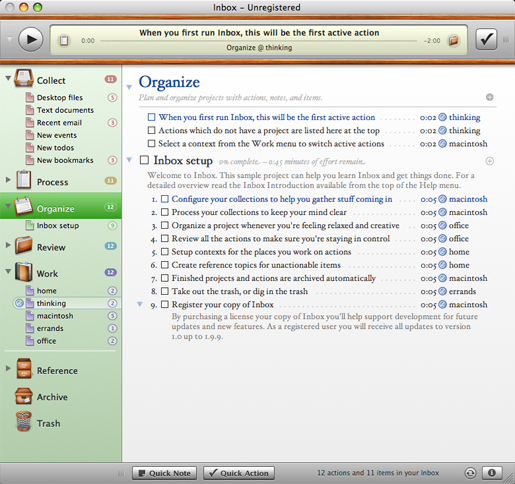 |
8. Midnight InboxMidnight Inbox is one of many GTD applications for Mac OS X. Unlike many GTD applications, which are essentially enhanced TO-DO lists, Inbox seems to be designed from beginning to implement the Getting Things Done workflow that David Allen describes in his book. While Inbox may be practical and useful, the reason it’s on this list is because it’s stunning to look at. If someone had told me that they planned to use lots of wood trim in the design of their Mac application, I would have laughed. Inbox has made me a believer. p.s. Yes, I haven’t bought Inbox yet. It’s possible that using Inbox would make my life 10 times easier and make me 10 times more effective. I just don’t have the time to devote to learning a whole new way of doing things. That, at least, is the benefit of an “enhanced TO-DO list” – you can improve your processes, you don’t have to learn entirely new ones. |
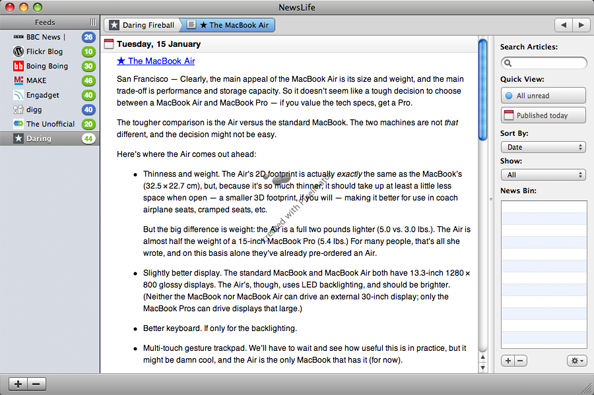
9. NewsLifeNewsLife debuted last summer in an attempt to dethrone NetNewsWire, the reining RSS champion for Mac OS X. Recently, Ranchero upped the ante by reducing the price for NetNewsWire to $0. NetNewsWire is the price king, and possibly the feature king (it certainly is in the minds of some), but Newslife is still better looking. |
 |
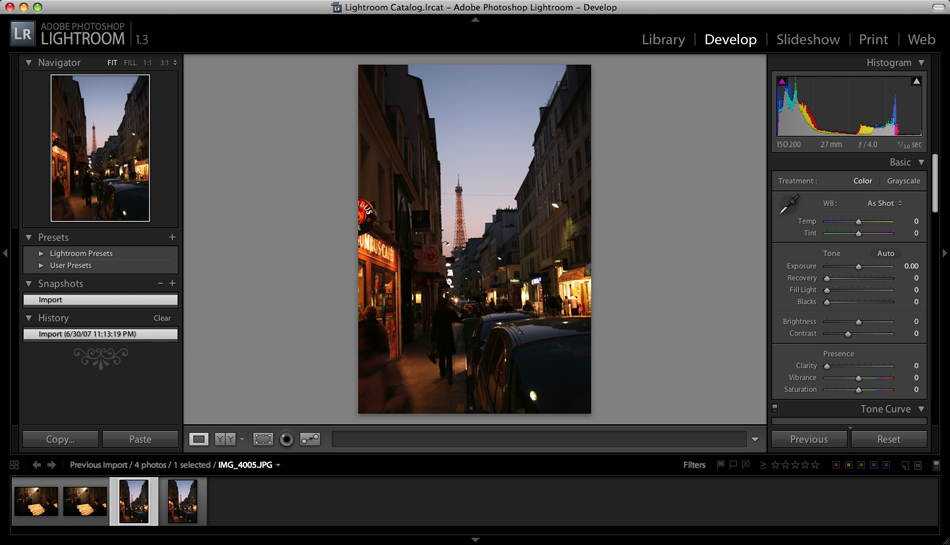 |
10. Adobe Photoshop LightroomAdobe Photoshop Lightroom is primarily for photographers (amateur or professional). I have to concede that photography falls a little outside the declared boundaries for the list (no design geek software!). Lightroom is just too good to leave off, though. It exemplifies all that is good and pure about the Apple ‘Pro’ style. |
Criteria
You might be looking at some of my choices and thinking, “it’s a nice piece of software, but it’s not exactly beautiful.” So what criteria did I use in choosing these 10? I am glad you asked. Overall appearance was, understandably, the largest factor. Looks alone weren’t enough, though. I also factored in usability and genre. The type of software is relevant because some kinds of applications are more difficult to make beautiful than others.
Finally, I also restricted each software publisher to one entry in the top 10. The publishers who lost out on account of this rule were Panic, The Omni Group, and Cultured Code (Cultured Code also lost out due to the non-geek requirement).
Macworld Roundup
January 17, 2008A few interesting tidbits from Macworld this week:
1. Time Capsule
Steve Jobs introduced Time Capsule in the keynote speech on Tuesday. Time Capsule is Apple’s new wireless network storage device that is intended to be used with Time Machine. One thing troubles me, though. Before Leopard was released, the developer versions of Leopard allowed Time Machine to be used with USB hard drives connected to an Airport Extreme. That functionality is not present in the release version of Leopard.
At first, many people thought there must be a technical reason – perhaps it required more testing. Now, it seems, that the motivation was purely financial – encouraging people to buy Time Capsule. I bought an Airport Extreme in anticipation of being able to use it to backup the computers in my house. Now it looks like I might have to use something other than Time Machine. Perhaps I’ll buy Chronosync licenses for the rest of my computers.
2. There be Dragon(s) Here!
One of the big names in speech recognition is Dragon Naturally Speaking. Many lawyers use Dragon while drafting letters, pleadings, motions, and other documents. Unfortunately, Dragon hasn’t been available on the Mac … until now.
MacSpeech, makers of iListen, announced a new product at Macworld – MacSpeech Dictate. MacSpeech iListen has received good reviews, but many have reported it being a little slow at times. For Dictate, MacSpeech licensed the Dragon speech recognition engine from Nuance. Simply put, Dragon is fast.
If you have been interested in dictation software but have been disappointed with the options available on the Mac, you may want to take a look at MacSpeech Dictate. You probably won’t be alone, either – Dictate won a Best of Show award at Macworld.
3. Ntractive Elements SBM Nnounced at Macworld
Tuesday at Macworld, Ntractive announced Elements SBM, their entry into the CRM software market (SBM stands for Small Business Management). Elements is a Web 2.0 application, meaning it utilizes advanced web application technologies. Because of this, Elements’ strength seems to lie in the ability to access your data from anywhere. Still, from the information available on the Ntractive website, it appears that some desktop integration is present. Ntractive is currently accepting sign-ups for their public beta. There is no word on when the beta is likely to begin, though. I am not sure that the Web 2.0 thing fits our needs, but I will still be signing up to take a look.
4. Fujitsu ScanSnap S300M
At Macworld, Fujitsu announced the ScanSnap S300M, a portable version of its popular ScanSnap scanners. The two main things you need to know about it are: 1) it runs off USB power; and 2) it doesn’t come with the full version of Adobe Acrobat. The ScanSnap S300M is expected to ship in March.
Edit: How could I forget the ScanSnap?
5 Best Mac OS X Leopard Features for Small Law Firms
November 10, 2007 Many of the most highly touted Leopard features seem to be useful primarily for home users. Some very creative law firms will no doubt find practical uses for Mail stationary and Photo Booth effects in iChat. Even so, I have identified five Leopard features as the most likely to have an immediate impact on your law practice. The first four features, taken together, can literally transform how you work with documents at your firm. The last feature doesn’t directly relate to document management, but is just too important to leave off the list.
1. Quicklook
 I don’t think I need to tell you that lawyers in virtually all practice areas have to deal with a lot of documents – pleadings, discovery, letters, work product, and much more. Even with proper file and directory names or Spotlight searches (more on that later!), it may be necessary to look at a number of files before finding the specific file or version you are seeking. If you have ever hunted for that one letter to opposing counsel from a month or two ago where a promise – as yet unfulfilled – was made, you will know what I am talking about.
Even when you know exactly what document you are looking for, finding it can take time. Previously, viewing a document meant loading up the application to and opening the file – a task which could take anywhere from five to thirty seconds. Leopard adds Quicklook, a tool that allows you to view a file without loading up the application. Quicklook supports most of the major file types, including PDF, Word, Excel, Powerpoint, images, and movies. Since Quicklook doesn’t allow you to edit files, it will be faster even if the application you normally use to open the file is already running. On my computer, Quicklook opens most small-to-medium-sized files in a second or less. That may not sound like a huge savings, but even an extra five seconds per document can add up to significant time if you have to look at ten or twenty documents.
2. Preview
 Preview in Tiger could best be described as a fast, feature-poor PDF viewer. In Leopard, that place has been taken by Quicklook. In Leopard, Preview has been reborn as a tool for managing and marking-up PDF documents. As before, Preview can still be used to view other types of files, such as images. The new features will be most beneficial, though, when working with PDF files.
The first thing you will notice about Preview is the new interface. There’s nothing outstanding about the new interface – but if you were using Adobe Reader because Preview was awkward and unpleasant, you can stop now.
The Preview annotation tools have been vastly improved in Leopard. For example, you can add notes to your PDF documents. The notes appear as yellow icons in the document. The text of the notes are displayed in yellow boxes – reminiscent of Stickies notes – in a sidebar to the left of the document.
The Leopard version of Preview also allows you to combine or rearrange the pages of PDF documents. You may have already had this capability through Adobe Acrobat. Upgrading to Leopard provides the same functionality to everyone in your office without buying additional Acrobat licenses.
3. Spotlight
 Apple introduced Spotlight in Tiger, allowing you to quickly search the contents of files on your computer or a hard drive connected to your computer (like a USB drive). With Leopard, Apple has expanded the reach of Spotlight to include other computers on your network. Combining Leopard with a ScanSnap and (the usually bundled) Adobe Acrobat allows you to set up fairly effective document repository on your network right out of the box.
The new Spotlight search options in Leopard will also give you much greater control over your searches. In Tiger, Spotlight could only handle simple keyword searches. Leopard adds the often-requested capability to perform very complicated searches. Apple added new search fields, including the primary fields from Address Book, iCal, and Mail such as Due Date, Email Address, and Subject. Document searches will benefit from new fields such as Authors and Pages. The already lengthy list will likely grow as programs are updated to take advantage of the new Spotlight features and add new search fields.
Spotlight also now supports Boolean AND/OR/NOT logic. By holding the Option key down when adding a search term, you can build searches such as “Condition A but not Condition B” or “Condition A and any of Conditions B, C, or D.” Like in Tiger, these searches can be saved as Smart Folders and accessed directly from the Finder sidebar.
4. Folder Sharing
 Folder sharing isn’t an amazing feature by itself, but in this case it is the last piece of the puzzle. Folder sharing in Tiger was rather limited – you basically had to give everyone full access rights to everything. Leopard replaces the all-or-nothing approach of Tiger and lets you share individual folders with other users. Each user can be given different rights – or no rights – to the files in the shared folder. You can, for example, allow all users to read the files in a directory but permit only some users to edit or delete the files.
Fine-grained control over access to your documents is necessary as your practice grows. With Leopard, you can share your documents without losing control.
5. Boot Camp
 One of the reasons people often cite for refusing to buy a Mac is that they need to run a particular piece of software. There are now two primary solutions to that problem: virtualization software, like Parallels Desktop and VMWare Fusion, and Boot Camp. Originally introduced last year as “beta test” software, Boot Camp is now an official part of Mac OS X with Leopard. A Mac running Boot Camp can have Mac OS X and Windows XP or Vista installed. Each time the computer boots up you can choose whether to run Mac OS X or the installed version of Windows.
The real magic of Boot Camp comes when it is combined with Parallels or VMWare software. Both Parallels Desktop and VMWare Fusion allow a computer to run Windows from inside Mac OS X. The Windows installation normally exists as a very large file stored on your computer (my biggest Windows installation is currently 6.8GB). However, you can also choose to use a Boot Camp installation of Windows with either Parallels or VMWare. So by combining Boot Camp with Parallels or VMWare, you can run: just Mac OS X, both Mac OS X and Windows at the same time, or just Windows. That is the ultimate in flexibility.
Conclusion
Mac OS X Leopard is well-suited to a business environment. Leopard includes many more features than I have space to mention here that you may find a use for in your law practice. In addition, Leopard follows in the tradition of earlier releases of Mac OS X, such as Panther and Tiger, by adding great features for software developers. You won’t see a benefit from the new developer features right away. But, over the next couple of years you can expect to see new Mac software released that either wasn’t possible before or would have been much more difficult – and costly – to create. Mac OS X Leopard Server adds even more useful features, but that’s a topic for a whole article unto itself.