
Archive for the 'GTD' Category
Getting Things Done with Daylite
June 23, 2008Today Macworld is reporting that Marketcircle is bringing Daylite to the iPhone. Daylite’s iCal integration is nice, but a lot of the useful information (e.g. the connections to contacts) doesn’t carry over to iCal. Daylite on the iPhone would be a welcome addition.
A couple of weeks ago Marketcircle posted an article on their site called Getting Things Done with Daylite. It’s a nice tutorial on how to use the various tools Daylite provides as part of your workflow.
OmniFocus TidBITS
June 19, 2008I am sure you were hoping I would post about the new Princess Bride game coming soon to Mac. I’m afraid not. What I do think you should know about is the review of OmniFocus over at TidBITS. There are also a few screencasts about OmniFocus related to the review. I have been working on an OmniFocus review for a while now. I am almost done, but it appears that my insane-busyness-with-other-things has allowed someone to beat me to the punch. My review is still coming soon, though. So check out the TidBITS review and then come on back here to get a slightly different take on The Omni Group’s GTD application.
iPhone Apps Are Coming!
June 10, 2008With iPhone 2.0 right around the corner, details are starting to emerge about some of the iPhone applications we can expect to see. Leading off the list is mobile NetNewsWire. I am a little disappointed to not see Apple Briefs in their screenshots. But at least now I know I am not the only one who checks in every day to see how the lolcats are doing. Some GTD-goodness is headed to your iPhone soon via Things and OmniFocus. OmniFocus seems to be a little farther along – The Omni Group has a teaser page up complete with screenshots. Those pencil drawings of Things look pretty good, though (and I really like the idea of using stencils to plan an iPhone app).
Things Update Brings iCal Sync
May 25, 2008Cultured Code dropped a new version of Things on us yesterday. The 0.9.2 release includes support for iCal and Leopard’s system-wide to-dos. This new feature allows Things to interact with other applications built for Leopard, such as MailTags and MenuCalenderClock for iCal.
Review: Things
April 7, 2008This is the first of four reviews of task management software for the Mac. I plan to review Things, OmniFocus, Inbox, and iGTD. I’ll probably top it off with a roundup article, that does more comparing and contrasting than in the individual reviews. Each of the four programs I will review is consistent with, if not explicitly modeled after, David Allen’s Getting Things Done (GTD) methodology. I have learned a few things from David Allen, but I haven’t fully embraced the GTD workflow. When appropriate, I will try to point out features that might be important to those striving to live the GTD life.
Introducing Things
When Cultured Code first announced Things I knew we were in for a treat. I have been using Xyle Scope, a web designer tool, for quite some time and have been very happy with it. There’s a lot to like about Things. I liked Things so much, in fact, that it made it onto my list of the 10 Most Beautiful Mac Applications (for Non-Geeks). Things is still beta software, so some things may change between now and the 1.0 release.
Things is a task manager. It’s for people who need to keep track of more than a few tasks at a time (which in my experience is basically everyone). The idea behind Things is to give you a single place to put all of your tasks and related information. Let’s take a look and see how well it works in practice.
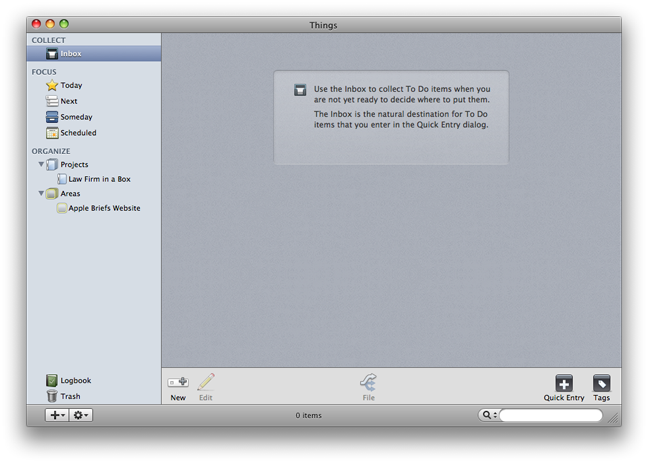
The Basic Elements
You’ll spend most of your time in Things creating and manipulating tasks (called a To Do). All tasks have a title, and you can also include one or more tags, notes, and a due date. A task can also be set up to be repeating (more on that later). Entering a task is quite easy, and can be initiated by choosing the New task menu item, clicking on the New task button, or launching the Quick Entry window.

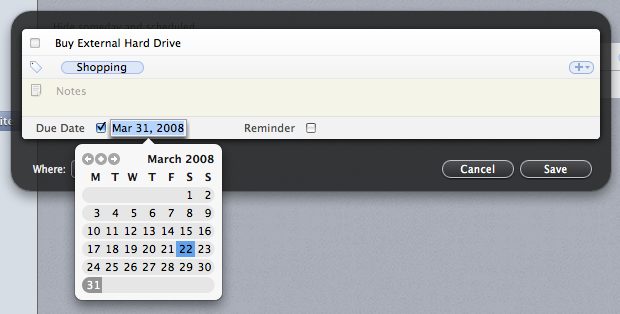

What sets Things apart from the other Mac GTD apps I have tried is its reliance on tags. A tag is a keyword, label, or other piece of information that is associated with the task. Things has a panel for managing your tags, but you can also create tags on the fly just by typing them into the tags input box for a task. Things tag entry also supports autocompletion and single-character shortcuts for faster tag entry. Tags aren’t just informational, they can also be used to focus on a particular subset of your tasks. At the top of the main window is a tag bar that allows you to select a tag, restricting your view to only those tasks with the matching tag. You can select more than one tag by holding down the Shift or Command key. Selecting multiple tags performs a logical “AND” operation (meaning all tags have to be present on a tag for it to be listed). I think an “OR” operation (meaning a task will be listed if any of the tags is present) would be more useful based on the time I spent with Things.
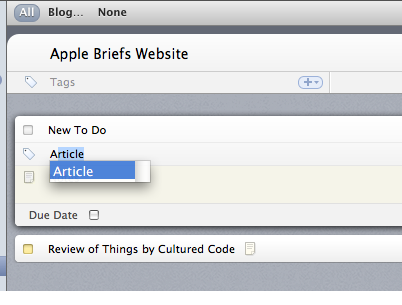


Tasks can be organized in two basic ways: projects and areas. A project represents a series of tasks necessary to reach some larger goal. An area represents a category of tasks or tasks that are related to an ongoing activity. Projects and areas differ in a number of ways. Projects are meant to be completed, so they have a box to check when the task is completed and can have a due date. Areas, on the other hand, are never completed. An area is simply a bucket for tasks that fit some description.
Sub-projects and sub-areas are not allowed right now. The sub-area limitation seems easy get around by using tags, but the lack of sub-projects seems like an oversight. An area can contain a project, but creating one is a little flaky. The only way to make a project in an area is to click the New project button at the bottom of the main window while an area is selected. Choosing the New Project menu item from the File menu or the sidebar menu (accessed by clicking the + button) will only create a top-level project.
Managing the Flow
 Things has a number of bins (for lack of a better word) in the sidebar for organizing and working with your tasks. At the top is the Inbox, which serves as a place to create and hold tasks until you are show how to categorize them. Below the Inbox are the four Focus lists: Today, Next, Someday, and Scheduled. How these lists work will make the most sense if we start at the bottom.
The Scheduled list allows you to postpone a task until a particular date. The Someday list is like a permanent “snooze” button, providing a place for you to defer tasks indefinitely. The Next list is the big list of your uncompleted tasks. By default, only the next 3 tasks from each Project will be displayed (which makes sense because project tasks are generally intended to be performed sequentially). If Next is the big list, Today is the focused list. In Things, “Today” doesn’t really mean just “today.” The Today list holds tasks scheduled for today, overdue tasks, and any other tasks you decided to add to the list. It appears that a task will stay in the Today list until it is completed or deleted. The relationships between the lists are much more complicated than I have described here. Check out the Things wiki for more details.
Below the Focus lists are folders that contain your Projects and Areas. Right now selecting one of the folders doesn’t provide much information – just the name of each Project (or Area) and the number of tasks inside. Hopefully this feature will be beefed up by the 1.0 release.
At the bottom of the sidebar, next to the trash is the Logbook. When a task is completed, it will be archived to the Logbook. That gets the task out of the way while still keeping a record of it for future reference. I am a little puzzled by the fact that I can still edit tasks once they are in the Logbook. I would also like the Logbook to show the project or area where the task originated (possibly after the description of the task).
That’s Nice, But How Well Does It Work?
Things is structured around the GTD workflow. The Things sidebar has sections for collecting (the Inbox bucket) and organizing (the Today, Next, Someday, and Scheduled lists). The GTD workflow Process, Review and Do steps involve working in all of these sections. Things also attempts to incorporate the levels of focus concept by including projects and areas.
In my limited trial, I did not use the Inbox very much. I still haven’t gotten to the point where I collect everything I am going to do into one bucket. I am, however, very much project-oriented, and I like those projects to be organized. The Things project and areas features fit into my current workflow quite nicely.
I liked the ability to work at varying levels of focus. When I want to see what’s currently on my plate, I can work in the Focus section (either Today or Next). At the same time, I can easily look at the project as a whole – to add tasks, see what is coming up, or move things around a bit – by going to the Organize section.
Tags were a mixed bag. I liked the ability to assign tags to tasks because I have difficulty coming up with a single category that is sufficiently descriptive. That’s just too much pressure! On the other hand, I never found myself filtering tasks by tags because there wasn’t any need to. Tags would probably be more useful for someone who has hundreds of tasks. In my case, they served as useful reminders about the tasks but that was all.
Please Find Something to Complain About
I had to look hard, but I was able to find a few things I don’t like about Things. One is quite glaring, the others a little more subtle. The glaring problem is the lack of context menus. Just about anywhere I right-click (or control-click) I expect to see a menu appear. Not so in Things. Right-clicking on an element in the sidebar or a task in the main window does nothing. It fees very un-Maclike.
Speaking of un-Maclike features, I would like to see better drag-and-drop support. I understand that this might be an advanced feature, so I am not complaining about its absence so much as putting in a feature request. Dragging a URL to Things makes a new task with the URL as the description. It makes more sense to me that the URL would appear in the notes. And while we are putting URLs in the notes, imagine if Things made them clickable too! I would also like to be able to drag in (clickable) links to files on my own computer. Daylite already does this, and it’s a difficult feature to have to give up.
Another issue I had was with Repeating tasks. Setting a task to repeat every day literally creates a new task every day. If you’re not paying attention or go away for a few days you will find your Today list filling up with tasks – all identical. Since they are identical, I don’t see the need to create multiple copies. If you do want to allow for that possibility, at least make it an option that is turned off by default.
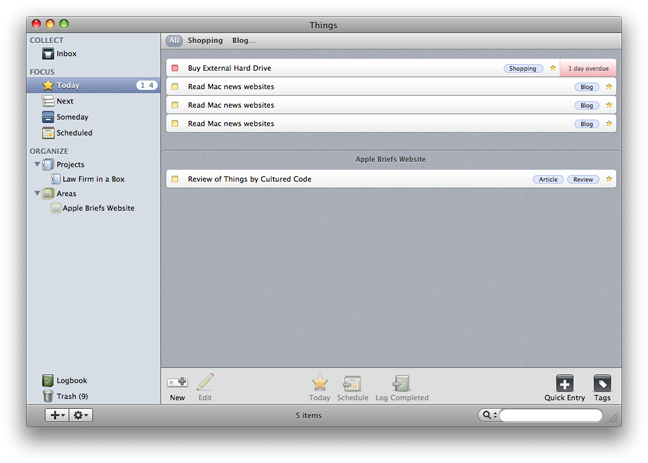
Finally, I would like to have an option to see my task notes more easily. Currently I have to double click on a task to enter edit mode to see the notes. An icon does appear on the task to remind me of the note. Getting to the note is far too difficult, though. Most of my notes are short – a maximum of one or two lines. Short notes could easily be shown in the entirety, with longer notes having a “more” link or button that would expand the entire text.
Final Notes
Overall, I enjoyed using Things. The interface is intuitive (context menus aside) and quite creative in how information is presented (a good example is how overdue tasks are displayed both in the sidebar and in the Today window). I think that with a few tweaks Things could become a truly great task management application.
More to Come
As I said at the outset, this review was based on a beta release of Things (version 0.9.1). I am sure I’ll have more to say (hopefully all good) when the release version arrives.